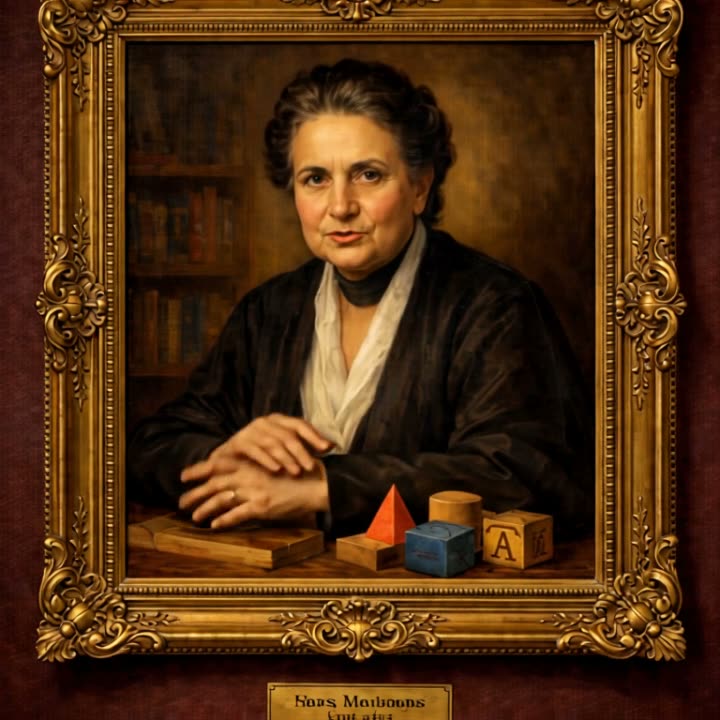
Still images, brought to life.
Animated figures made in Xogos AI.
Make it talk, or make it move.
Talking (lip-sync)
Give it a face and a voiceover, and the mouth, eyes and head move with every word. The choices, each with its strength:
- VEED Fabric: fast, with great lip-sync.
- Hedra: expressive delivery, with body motion and camera direction from your prompt.
- D-ID: premium quality and natural movement.
- Kling Avatar: full-length talking avatars that run as long as the audio, in 720p or 1080p.
Moving (image to video)
No voice needed. Describe the motion and the scene comes alive: wind in the flags, a slow camera push, a character turning to look.
- LTX: 6–20 second clips with sound, or clips that follow your own audio.
- Gemini (Veo): 4–8 second cinematic clips with their own sound.
Most offer 720p or 1080p and square, wide or tall shapes.
Whole projects, animated for you.
Figure Studio
Bring a list of historical figures (or anyone you invent). It writes each one’s story, paints the portrait, records the voice and animates the video, a whole set from one spreadsheet.
Toon Story Studio
Turn a history lesson into a cartoon: the story, a cast who look the same in every scene, one picture per scene, narration and captions, rendered into one video.
Video Gallery
Every video you make is saved here to watch, download, resize for social media, or turn into an ad.
Three steps to a talking figure.
Bring someone to life.
Pick any image from your gallery to start.
Open Animate